Touchscreen - Rear (Remove and Replace)
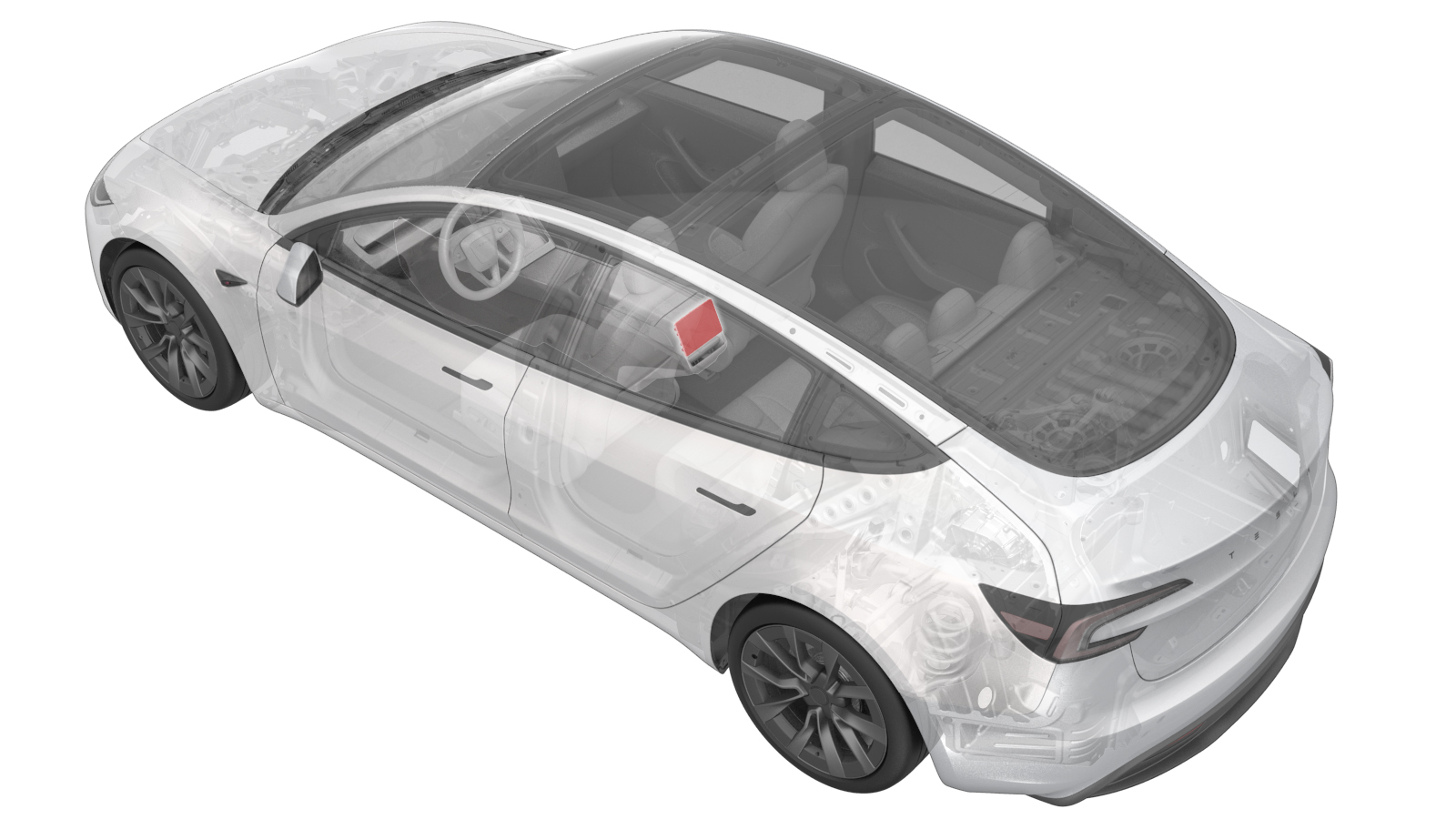 Correction code
2107010222
FRT
0.42
NOTE: Unless
otherwise explicitly stated in the procedure, the correction code and its
associated FRT reflect all of the work required to perform this procedure,
including the linked procedures. Do not stack correction
codes unless explicitly told to do so.
NOTE: See Flat Rate Times to
learn more about FRTs and how they are created.
NOTE: See Personal Protection to make
sure you are wearing proper PPE when performing the procedure below.
NOTE: See Ergonomic Precautions for safe and healthy
working practices.
Correction code
2107010222
FRT
0.42
NOTE: Unless
otherwise explicitly stated in the procedure, the correction code and its
associated FRT reflect all of the work required to perform this procedure,
including the linked procedures. Do not stack correction
codes unless explicitly told to do so.
NOTE: See Flat Rate Times to
learn more about FRTs and how they are created.
NOTE: See Personal Protection to make
sure you are wearing proper PPE when performing the procedure below.
NOTE: See Ergonomic Precautions for safe and healthy
working practices.
- 2026-08-25: Added steps for the Display Connection Test routine.
- 2026-07-20: Updated the steps from removing the hockey sticks to partially releasing them for enough access space; added the firmware reinstall step; classified the bolts securing the rear display as consumable parts.
Torque Specifications
| Description | Torque Value | Recommended Tools | Reuse/Replace | Notes |
|---|---|---|---|---|
| Bolts (x5) that attach the rear display to the rear end module |
 1 Nm (.7 lbs-ft) |
|
Replace | 1096312-00-C |
Remove
-
Remove the rear end module assembly.
See Module - Rear End - Center Console (Remove and Install)
NoteNo need to remove the rear end module from the assembly.
-
Remove and discard the bolts (x5) that
attach the rear display to the rear end module assembly, and then remove the rear
display from the vehicle.
TipUse of the following tool(s) is recommended:
- Torx T20 bit
Replace
-
Install new bolts (x5) that attach the
rear display to the rear end module.1 Nm (.7 lbs-ft)TipUse of the following tool(s) is recommended:
- Torx T20 bit
- Install the rear end module assembly. See Module - Rear End - Center Console (Remove and Install)
- Locally connect a laptop with Toolbox 3 to the vehicle. See Toolbox (Connect and Disconnect).
-
On the laptop, click the Actions tab, type "PING-BASH_DISPLAY" into the search field, click PING-BASH_DISPLAYvia Toolbox:(link), select
rear
in thePoppyseed Display Test Arg
field, change the timeout to20
, click Run, and allow the routine to complete. - Disconnect the laptop.
- Reinstall the firmware. See Software Reinstall - Touchscreen.