Camera - Interior (LHD) (Remove and Replace)
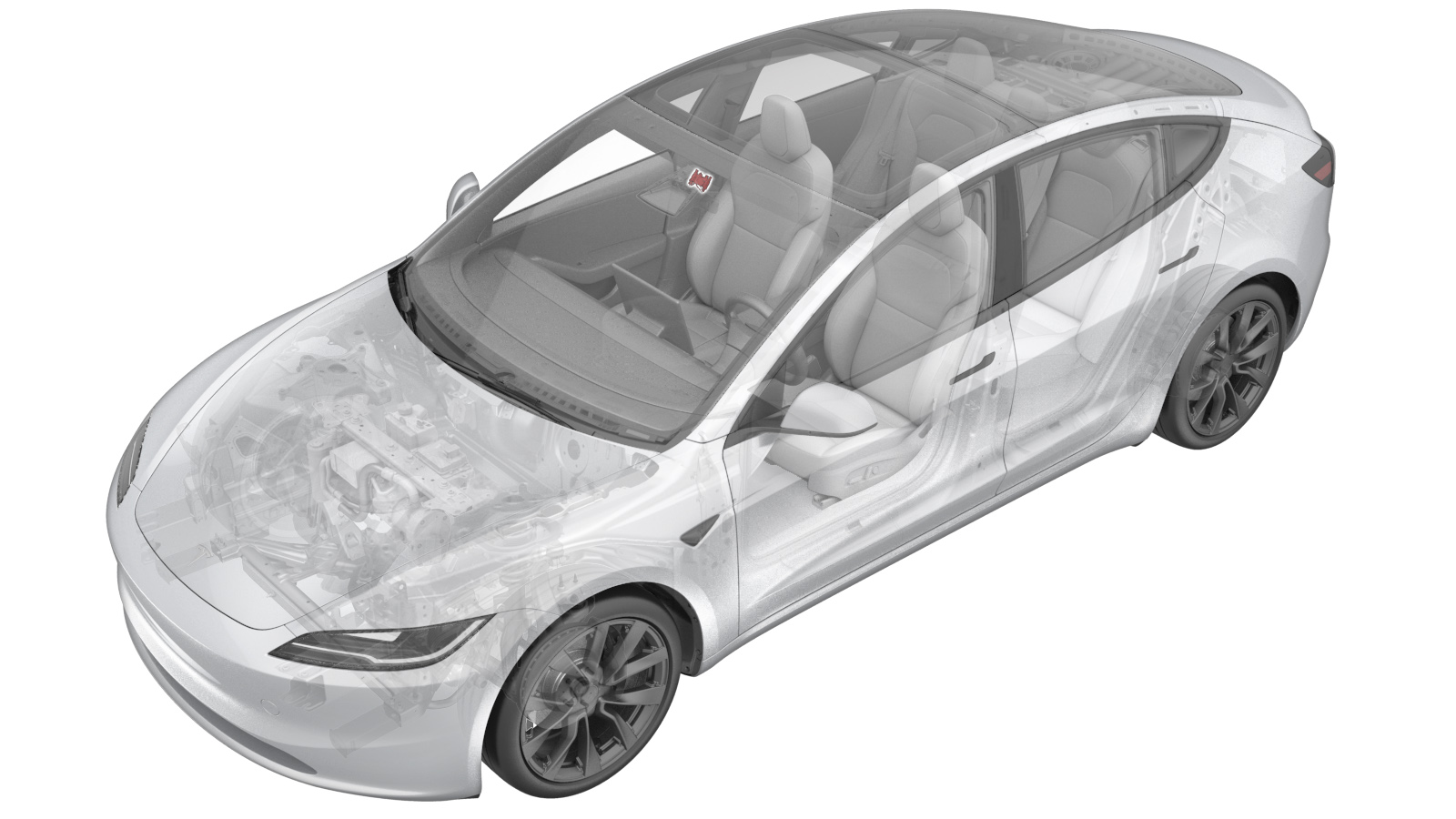 Correction code
1724010012
FRT
0.18
NOTE: Unless
otherwise explicitly stated in the procedure, the correction code and its
associated FRT reflect all of the work required to perform this procedure,
including the linked procedures. Do not stack correction
codes unless explicitly told to do so.
NOTE: See Flat Rate Times to
learn more about FRTs and how they are created.
NOTE: See Personal Protection to make
sure you are wearing proper PPE when performing the procedure below.
NOTE: See Ergonomic Precautions for safe and healthy
working practices.
Correction code
1724010012
FRT
0.18
NOTE: Unless
otherwise explicitly stated in the procedure, the correction code and its
associated FRT reflect all of the work required to perform this procedure,
including the linked procedures. Do not stack correction
codes unless explicitly told to do so.
NOTE: See Flat Rate Times to
learn more about FRTs and how they are created.
NOTE: See Personal Protection to make
sure you are wearing proper PPE when performing the procedure below.
NOTE: See Ergonomic Precautions for safe and healthy
working practices.
- 2026-04-23: Updated camera update routine.
- 2026-03-02: Updated calibration steps to use ServiceUI.
- 2025-03-25: Added camera connection test routines.
Torque Specifications
| Description | Torque Value | Recommended Tools | Reuse/Replace | Notes |
|---|---|---|---|---|
| Bolts (x2) that attach the interior camera to the camera upper cover |
 0.8 Nm (7 lbs-in) |
|
Replace | 1919198-00-A |
Remove
- Place the vehicle in Service Mode by using the touchscreen. See Service Mode.
- Remove the upper camera cover. See Camera Cover - Upper (Remove and Replace).
-
Remove and discard the bolts (x2) that
attach the interior camera to the camera upper cover, and then remove the interior
camera.
TipUse of the following tool(s) is recommended:
- Torx T10 bit
Install
-
Secure the interior camera into the tab on the upper camera cover.
-
Install new bolts (x2) that attach the
interior camera to the upper camera cover.0.8 Nm (7 lbs-in)TipUse of the following tool(s) is recommended:
- Torx T10 bit
- Install the upper camera cover. See Camera Cover - Upper (Remove and Replace).
- Unlock the vehicle gateway. See Gateway Unlock.
-
Run PROC_DAS_X_CLEAR-CALIBRATIONvia Service Mode:
- Driver Assist ➜ Cameras ➜ Clear Camera Calibration
- Driver Assist ➜ Driverless ➜ Clear Calibration
-
Run PROC_DAS_X_UPDATE-CAMERAvia Service Mode:Driver Assist ➜ Cameras ➜ Update Cameravia Toolbox:(link)
NoteThis routine will be available in software version 2026.8.6 and later. Until then, run the following routines to update the camera:
- Connect a laptop with Toolbox 3 to the vehicle. See Toolbox (Connect and Disconnect).
- In Toolbox, click the Actions tab, type "DAS" into the search field, click PROC_DAS_X_ENTER-CALIBRATION-MODEvia Toolbox:(link), click Run, and allow the routine to complete.
-
Type "Side Repeater"
into the search field, click PING-HTTP_DAS_X_INTERIOR-CAMERA-SCRIPTvia Toolbox:(link), change the timeout to
100
, click Run, and allow the routine to complete. - Type "DAS" into the search field, click PING-HTTP_DAS_X_INTERIOR-CAMERA-SCRIPTvia Toolbox:(link), click Run, and allow the routine to complete.
- Disconnect the laptop from the vehicle.
- Exit Service Mode Plus. See Service Mode Plus.