Car Computer (HW4) (LHD) (Remove and Replace)
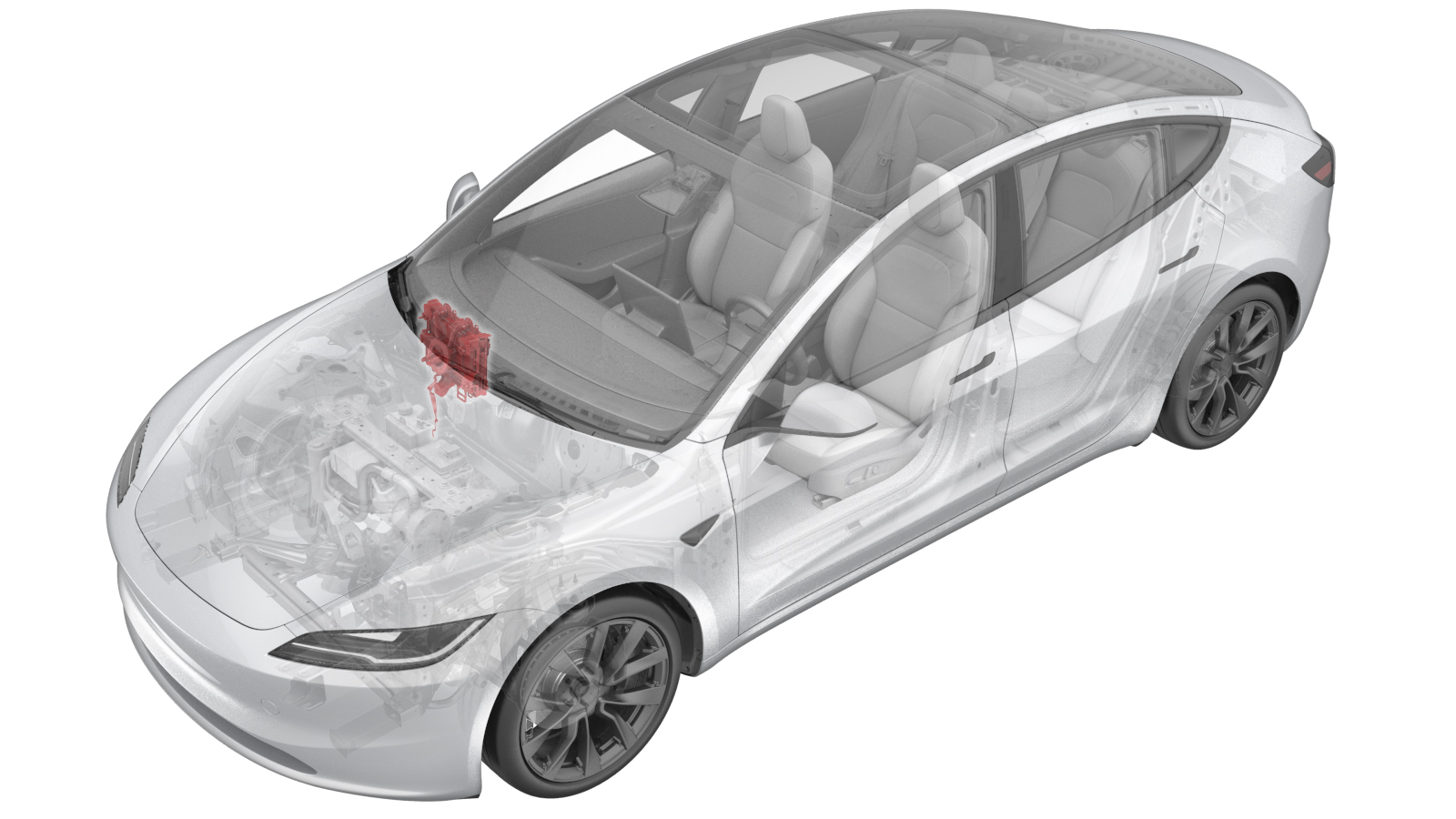 Correction code
21153302
FRT
1.74
NOTE: Unless
otherwise explicitly stated in the procedure, the correction code and its
associated FRT reflect all of the work required to perform this procedure,
including the linked procedures. Do not stack correction
codes unless explicitly told to do so.
NOTE: See Flat Rate Times to
learn more about FRTs and how they are created.
NOTE: See Personal Protection to make
sure you are wearing proper PPE when performing the procedure below.
NOTE: See Ergonomic Precautions for safe and healthy
working practices.
Correction code
21153302
FRT
1.74
NOTE: Unless
otherwise explicitly stated in the procedure, the correction code and its
associated FRT reflect all of the work required to perform this procedure,
including the linked procedures. Do not stack correction
codes unless explicitly told to do so.
NOTE: See Flat Rate Times to
learn more about FRTs and how they are created.
NOTE: See Personal Protection to make
sure you are wearing proper PPE when performing the procedure below.
NOTE: See Ergonomic Precautions for safe and healthy
working practices.
- 2026-05-06: Removed the air purge note, as the cooling system vacuum refill is included in the Car Computer (Remove and Install) and not required to operate the air purge routine again.
- 2026-01-07: Added the Toggle SIM routine after car computer replacement.
- 2025-10-30: Added step to make sure that the vehicle is in "Park" mode.
- 2025-03-13: Added 3rd party security credentials check.
- 2024-10-21:Added note on using self tapping bolts when installing the new car computer to the bulkhead.
- 2024-10-16: Removed individual instructions for car computer scrapping and added cross reference to Car Computer (Dispose) topic.
- 2024-10-09: Added instructions for scrapping.
- 2024-09-06: Added owner authorization request and LV maintainer steps.
- Make sure that the vehicle is in "Park" mode during this procedure.
- Connect a laptop with Toolbox to the vehicle. See Toolbox (Connect and Disconnect).
-
For Third Party repairs only: Perform
the Toolbox Owner Authorization Request.
NoteIf the repair was booked through Tesla Service, the customer has already given authorization. Go to the next step.
- Log in to https://toolbox.tesla.com/help/owner_authorization.
- On the left panel, click Owner Authorization Request, and then click Request Owner Authorization in the main panel.
- Complete and submit the form.
- Ask the vehicle owner to approve the authorization request that was sent to their email.
- Click on and on the "Getting Started" page, click on Next Step.
-
On the "Backup & Factory Reset" page, click Next Step and
follow the prompts to perform a profile backup and factory reset on the car
computer.
NoteThe car computer will reboot several times during this step.
-
Once the "Replace" page appears, the car
computer can be replaced. Use the instructions in Car Computer (LHD) (Remove and Install) to perform the
following:
-
Fasten the replacement car computer to the vehicle.
NoteThe new car computer bracket does not have threaded holes for the bolts (x2) that attach the car computer to the bulkhead. When installing the new car computer to the bulkhead, attach nuts (x3) and use the original self tapping M8 bolts (1637725-00-A) (x2) to thread holes in the car computer bracket.
 20 Nm (14.7 lbs-ft)
-
Fasten the replacement car computer to the vehicle.
-
Reestablish the Toolbox laptop
connection, and in the "Replace" page, click Next Step.
-
For Third Party repairs only: Enter the vehicle security professional login credentials that are required in order to proceed to the "Associate Car Computer" section.
NoteParts considered security and/or theft-relevant, or which may require special programming and/or setup, are only able to be configured by automotive professionals that are registered with a vehicle security accreditation organization, or by Tesla Service Technicians.
- Follow the prompts to transfer configs and associate the replacement car computer. The car computer will reboot several times.
-
When association is complete and the VIN is confirmed online, click Next
Step to go to the "Update" page.
NoteIf necessary, Reconnect the Toolbox connection.
-
Click Start Part Replacement OTA to deploy a software update to
the vehicle.
NoteIf necessary, Reconnect the Toolbox connection.
- Use the vehicle touchscreen to install the software package. See Software Reinstall - Touchscreen.
-
In Toolbox, click Next Page to go to the
"Restore" page, and then follow the prompts to restore the vehicle profile.
-
If the car computer is equipped
with a physical SIM card, perform the routine below; otherwise skip this step.
- Perform the following routine using Service Mode or Toolbox (see 0005 - Service Modes): PROC_ICE_X_ENABLE-DISABLE-SIM-CARDvia Service Mode Plus:Infotainment ➜ Connectivity ➜ Toggle SIMvia Toolbox:(link)
- Disconnect the laptop from the vehicle.
- Install the remaining components that were removed for access. See Car Computer (LHD) (Remove and Install).
- Make sure to properly dispose of the old car computer. Follow the instructions in Car Computer (Dispose) and add correction code 21151007 as a separate activity to the Service Visit.